# Introduction
Survey funnel is a very advanced WordPress Survey plugin that can be used for surveys, questionnaires and Feedback. Download it now
Documentation link for new version (v1.0.0), [click here](https://docs.wpeka.com/survey-funnel/v/master/).
Survey Funnel is a popular WordPress Survey Plugin. You can use it for Surveys, Questionnaires, and Feedback. There is no limit to how creative you can get with this plugin.
If you are looking for building a massive list in the shortest time possible, Survey Funnel is the way to go. Available with a drag and drop interface.
# Installing Survey Funnel
In order to activate the plugin download the Survey funnel zip file from API Downloads and from plugins options select New to upload plugin.
1. Download the zip file from API Downloads by logging into your [WPeka -](https://club.wpeka.com/my-account/api-keys/)> My Account page.
2. Log in as the WordPress Admin of your website.
3. Navigate to Plugins > Add New to upload plugin
4. Choose the plugin file to upload.
5. Activate the plugin.
# Creating a Survey
You can easily create a new funnel by adding a new funnel form Wordpress Admin section. Customise the settings and save the funnel. Try now
You can create a survey from "**WordPress Admin -> Survey Funnel -> Add Funnel**".

This page is divided into 2 sections - **Display Settings** (Left) & **Trigger Settings** (Right).
## **Display Settings**
**Survey Name -** Provide a name for the survey.
**Style Options -** Select options for the style of the Survey like Background Color, Background Image, Width, Height, Padding, Border, Question Background Color.
**Cookies -** Select checkbox for select cookies. If checked cookie will be set with a visitor's browser after the survey is displayed. When a visitor visits the page again the survey will not be displayed.\
**Expire cookie after -** Provide a number of days after which cookie will be deleted and the survey will be displayed again when a visitor visits the same page.
**Accent Text -** Text to be displayed where user will click and a survey will start.
**Accent Background Color & Accent Text Color -** Select colors for Accent background & Accent text.
## Trigger Settings
Trigger settings have 2 options - **Pages & Deploy.**
### Pages Tab

**Start Question -** Select the question number from which survey will start.
**Pages -** you can select the pages on which the current survey will be displayed. You can check/uncheck the '**All Pages**' option to display the survey on all pages or not.
### Deploy Tab

You can copy the code provided here to create the button on any page or post. Upon clicking on which button survey will start. Button code only will be displayed when the survey is saved.
Once you have customized the settings click on the **Save Funnel** button at bottom of the screen. Saved surveys can be accessed from **WordPress Dashboard > Survey Funnel > Dashboard**.
# Adding questions to the Survey
Survey funnel allows you to easily add questions to your surveys. You can either enable slide-in or link survey on a page at a time. Read More
Note: Each survey can be used in any one of the following ways :
* Slide-in Survey
* Link Survey
Go to Wordpress Admin -> Survey Funnel -> Add Funnel.

* Display Settings:
| **Setting Name** | **Description** |
| ----------------------- | ------------------------------------------------------------------------------------------------------------------ |
| Survey Name(required) | Name of the survey. |
| Background | The background color of the survey box. |
| Background Image | The background image of the survey box. You can not remove image once selected. |
| Width x Height | The size of the survey box. |
| Padding | The padding of the survey box. |
| Border | The border for the survey box. |
| Question Background | The background color of the survey question. |
| Cookie | Use/Not use a cookie for the survey display. If used, the user will not see the survey if he has already taken it. |
| Accent Text | The text for the floating Slide-in survey. |
| Accent Background Color | The background color for the floating Slide-in survey. |
| Accent Text Color | The text color for the floating Slide-in survey. |
| User Information | The text settings for the user information box. |
* Trigger Settings:
1. Pages: Select start question from which survey will start, And select the pages on which you want to display the survey(slide-n surveys).
2. Deploy: Add this code on your landing page to open a survey when someone clicks on a link(Link surveys).
**Note: You can enable either slide-in or link survey on a page at a time.**
* Add Question:
Add a question with answers here.

* Add Content:
You can add content here(for ex. Thank you message). HTML is allowed here, you can add images and links too.

* Add Name/Email:
User information form for the user’s taking a survey.

# Change the flow of survey questions
Once all the questions are added in the funnel it becomes easy to decide from which question the survey will start and make changes accordingly. Read More.
Once you have added all the questions, you can decide from which question survey will start, change the sequence of questions in which they will appear. Also, you can decide which question to ask next based on user’s answers to the current question.
### Change the start question
To decide from which question to start a survey, go to Add Funnel page or Survey Edit page from the dashboard (if a survey is already created). In Trigger settings, under Pages tab select the Start Question and save funnel. From now on the survey will start from the selected question.

### Change the sequence of questions
After creating questions you can change the sequence of questions by dragging and dropping questions in required order.

While changing the sequence of questions if you changed the position of the first question, you will notice that in Trigger Settings start question number will be also updated, correct that if needed.
### Change the next question based on the user’s answers
You can toggle the view of answers by clicking on \[Show/Hide Answers] for all questions or individual question (from the bottom of each question). Here you will see each question has one dropdown box next to every answer. From the dropdown box, you can select available question which will be asked next if a user selects that answer.
If no value is selected in the dropdown box next question in sequence will be asked.

# FAQ
You can get all the SurveyFunnel plugin updates from WPEka site. You will see Master API Key and product ID of your purchase. Know More
## How to receive plugin updates from WPEka**?**
Once you have purchased Survey Funnel plugin from[ WPeka website](https://club.wpeka.com/), you will see Master API Key and product ID of your purchase.
Go to My Account -> API Keys section to get your Master API key and Product Id.

You need to authenticate by providing your User Name and Password for WPEka account.\
After you have authenticated your WPEka account you will receive updates for the plugin from WPEka**.**

# Introduction
Start creating surveys, questionnaires, and feedback with the most advanced and intuitive WordPress plugin Survey Funnel. Build your massive list now.
Documentation link for the old version (v8.0), [click here](https://docs.wpeka.com/survey-funnel/v/8.0/).
SurveyFunnel is a simple and easy-to-use survey plugin for WordPress that lets you create interesting and engaging survey forms with drag & drop options.
This WordPress survey plugin offers many features like drag & drop survey builder, custom display pages, long & short answers, radio buttons & checkboxes, opt-in forms, custom results pages, and many more.\
# Installing SurveyFunnel
First, download the free plugin here.
To install the free version of the SurveyFunnel plugin:
* Log in as the WordPress Admin of your website.
* Navigate to Plugins > Add New
* Click on Upload Plugin
* Upload the plugin zip file that you just downloaded.
* Click on Activate the plugin.

# Create a new survey
To create a new survey:
* Click on the dashboard button in the SurveyFunnel menu.
* Here click on the “Create New Content” button
* Choose the type of survey as a simple survey and enter the name of your survey. Then click on the “Continue” button.


Then you’ll be taken to the Build tab.

# Setting a Cover Page
In the build tab, you can set the starting page of your Survey called “Cover Page.”
* Drag the “Cover Page” box and drop it in the Start Screen area.
* This will open a pop-up where you can enter the title, description, and button label.
* You should immediately see the preview of your “Cover Page” on the right-hand side.
* For Pro users if you want users to accept your privacy policy before taking your survey you can enable it here.
Note: Before you can enable it you’ll have to set your privacy policy in the configuration tab. More information on this is covered in the configuration tab section.

After you enable the Privacy Policy setting your users will have to accept it by clicking this checkbox. This is especially useful since you’ll be collecting the email addresses of your users.

Click on the “Save” button on the bottom to save the Cover Page.
# Adding questions to your Survey
After setting up the starting page, you can start adding questions to the survey.
There are multiple types of questions you can add:
1. Single Choice Questions
2. Multiple Choice Questions
3. Long Text Answer
4. Short Text Answer
5. Image Options
**Setting Single Choice/Multi choice questions**
* Drag Single Choice/Multi choice type question and drop them in the “Content Elements” area, a pop-up will open.
* Add question title and question description.
* You can also add the answer options here.
* You can also decide to make this question mandatory
* Hit the “Save” button at the bottom.

Users will be able to select only one answer option for a Single Choice Question and select multiple answer options for Multiple Choice Questions.
**Long text answer/Short text answer questions allow you to collect answers from users in text format.**
**Setting Long text answer/Short text answer questions**:
* Drag Long text answer/Short text answer question and drop them in the “Content Elements” area, a pop-up will open.
* Add the question title and question description.
* You can also decide to make this question mandatory
* Hit the “Save” button at the bottom.

**Image Options question types let you add images to answer options**
**Setting Image Options question types:**
* Drag Image Options question and drop them in the “Content Elements” area, a pop-up will open.
* Add the question title and question description.
* For answer options add images you want your users to select
* You can also decide to make this question mandatory
* Hit the “Save” button at the bottom.

Additionally if you want to simply place a block of text in your survey you can do it using the "Text" box. Here you only have to add the title and the description.
Few things to remember while adding any questions:
* Adding a title is mandatory
* You can mark any question as required
* You'll have to add atleast 2 answer options to save it.
You can add as many questions as you want. Once you have added and save all the questions, you can see them all in the “Content Elements”. You can drag and change their sequence.
# Adding the opt-in form
Drag and drop the “Form Elements” box in the “Content Elements” area to start editing your opt-in form.
Once you drop it a popup will open, here you can give the title and description. Then you can add the form elements like “First Name”, “Last Name” and “Email” by dragging and dropping them in the “Form Fields” box.

You can click on the preview tab to see how the form will look to the users.

Finally, hit the save button.
# Adding Results
The results page is what users see when they complete the survey. You can set its content by dragging and dropping the “Results Page” box into the “Results Screen” area.
Once you drop it a popup will open, here you can give the title and description.
You should immediately see the preview of your “Results” page on the right-hand side.

Click on the “Save” button on the bottom to save the results page.
# Create a survey with scoring logic (Pro)
With the scoring logic survey, you can assign score values to answer options. You can show different result pages to different users based on their total score

**To create a scoring survey**:
* Click on the dashboard button in the SurveyFunnel menu.
* Then click on the “Create New Survey” button
* Choose the type of survey as a scoring logic and enter the name of your survey. Then click on the “Continue” button.

Then you’ll be taken to the Build tab.

**Setting a Cover Page**
In the build tab, you can set the Starting page of your Survey called “Cover Page.”\
Drag the “Cover Page” box and drop it in the Start Screen area.\
This will open a pop-up where you can Enter the title, description, and button label. You should immediately see the preview of your “Cover Page” on the right-hand side.\
If you want users to accept your privacy policy before taking your survey you can enable it here.
Note: Before you can enable it you’ll have to set your privacy policy in the configuration tab. More information on this is covered in the configuration tab section.

After you enable the Privacy Policy setting end users will have to accept it by clicking this checkbox. This is especially useful since you’ll be collecting the email addresses.

Click on the “Save” button on the bottom to save the Cover Page.
**Adding questions to your Survey**\
After setting up the starting page, you can start adding questions to the survey.
There are three types of questions for which you add scores:
1. Single Choice Questions
2. Multiple Choice Questions
3. Image Options
Drag any question type you want and drop them in the “Content Elements” area. Whenever you drag and drop any question type, a pop-up will open. Here you can give the question title and question description. You then have to add the answer options here. You can set the score for each answer option. Whenever a user selects any option their total score is increased by the number you set here. And you can show different result pages to different users based on their total score.
Hit the “Save” button at the bottom.

Users will be able to select only one answer option for a Single Choice Question and select multiple answer options for Multiple Choice Questions. You can add as many questions as you want. Once you have added and saved all the questions, you can see them all in the “Content Elements” area.
You can drag them and change their sequence.
**Adding the opt-in form:**\
Drag and drop the “Form Elements” box in the “Content Elements” area to start editing your opt-in form. Once you drop it a popup will open, here you can give the title and description. Then you can add the form elements like “First Name”, “Last Name” and “Email” by dragging and dropping them in the “Form Fields” box.

You can click on the preview tab to see how the form will look to the users.

Finally hit the save button.
**Adding Results:**\
In a scoring logic survey, you can show different result pages to users, based on their total scores. Before you begin ensure you have a clear idea of which score range will trigger which result page.
For example, you might decide if a user gets a score between 0-10 he should be shown result page R1. And if his score is between 11-20 he will be shown the result page R2.
To set this start by dragging and dropping the “Result Screen ” box into the “Results” area. Once you drop it a popup will open, here you can give the title and description. You will then have to set the score range that will trigger this particular result page. Note: Make sure that you don’t set up scores that overlap with other result pages. You can choose to show the total score to the visitor with a custom message. Once done with all the settings you should immediately see the preview of your “Results” page on the right-hand side.

Click on the “Save” button on the bottom to save the results page.
# Changing the Design of the Survey
The design tab is where you can change the look and feel of your Survey. From here you can change:
* Font Family
* Font Color
* Background Color
* Button Color
* Button Text Color
* Answers Highlight box Color
* Answer Border Color
* Background Container Color
* Background Image
* Background Image Opacity

When all of your changes are done, hit the Save button on the bottom to save your changes.
# Configuring the Survey

Following are the things you can set in the configuration tab:
**Meta information:**
This is where you can set the title and description for your survey. Remember that this information is used by search engines so make sure to include your keywords here.
**Set Privacy Policy**
If you want users to accept your Privacy Policy you can set it here.
First Set the Privacy Policy Page:
If a user wants to “Read More” about your policy before accepting it you can set it here.
This option will show you a list of all the pages on your site. You have to select the Privacy Policy page from this list.
Text:
You can edit the text that appears next to the Privacy Policy Check from here.

# Placing the Survey on your site
Before placing the survey ensure that you have published it. You can publish the survey by clicking the “Publish” button on the top right corner.
There are three ways you can place a survey on your site.
**Using a shortcode:**
To place the survey you created on your website head over to the deploy tab.

Here you’ll see you have 3 display options.
1. Responsive: places a responsive survey on your website.
2. Full Page: places a full-page survey on your website.
3. Custom: places a survey with custom dimensions
You can click on any of these display types and get the shortcode for your survey.
Copy this and paste it into any post or page you want the survey to be displayed.
**Using Gutenberg blocks:**
You can place any survey on your site using Gutenberg blocks.
To place a survey on any page/post go to the Gutenberg editor.
Here click on add block and search for SurveyFunnel.
Select the SurveyFunnel block.
Once it is added Select the Survey you want to place.
After that, you should select the type of display you want.
You can select from 3 options
Responsive, Full page or Custom Size
If you select the custom size you’ll see options to set the width and height of your survey.

**Pop-up:**
You can display your survey as a pop-up using this option.
Click on the Pop-up option in the sidebar.
Then click on “Targeting" Options:
* Select the devices on which you want to display the pop-up.
* Select the pages on which you want to display the pop-up.
Then click on “Behaviour”
Here you can set the conditions under which the survey shows.
Following are the options:
Launch pop-up when:
* After page loads: This will trigger the pop-up immediately after the page loads
* After a time delay of \_\_ seconds: You can set the delay after which the pop-up triggers.
* Select Exit Sensitivity: This triggers when the user tries to leave the page.
* After Scroll Percentage: This triggers the pop-up after the user scrolls the page to a certain depth.
Frequency:
* Always show: This ensures that the pop-up is triggered every time the user visits the page.
* Hide for \_\_ days after closing: This will hide the survey for a certain period of time if the user closes the survey.
* If the user has completed the survey don’t show it again. Use this option to hide the survey permanently from the user who has completed the survey.
Finally, you can click on the “Activate” tab and Activate the pop-up.
Make sure to save your settings.


# Reports
Reports are where you’ll see the responses that you received from users.
You’ll have to set a date range to start seeing the reports
Reports tab has 2 parts:
1. Insights
2. Responses
#### Insights tab:
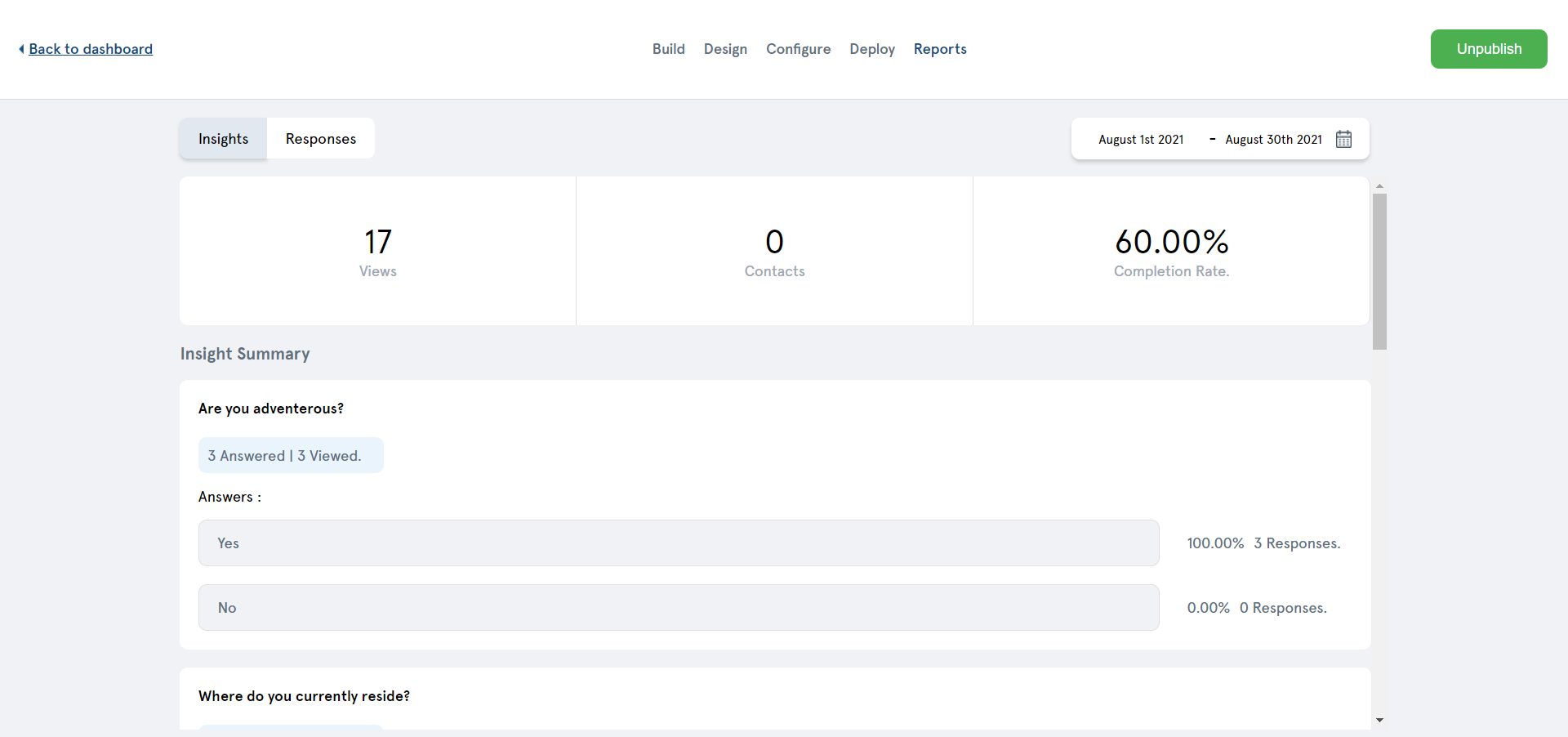
The insights tab will show you 3 things on the top:
1. Views: Number of people who viewed the survey
2. Contacts: Number of people who submitted their email ids.
3. Completion Rate: Percentage of people who completed the survey.
Below you’ll see the percentage of options selected by the users for each question.
**Responses tab:**
This will show you the answers given by each respondent. The respondents are identified by their email addresses submitted. If a user hasn’t submitted their email address you’ll see their responses as “Unknown”.
You can export all the responses as CSV for offline analysis.

# Conditional Logic (Pro)
This page would guide you in adding conditional logic to surveys so that you can make users jump onto questions for a specific answer.
SurveyFunnel allows you to build smart surveys that will automatically show or hide questions on a form based on your users’ previous responses.
### Applying Conditional Logic
#### SHORT ANSWER:
First, drag and drop the single choice element to the Content Elements section. Now, add the question you want in the Title and click the ‘Save’ button.

To apply conditional logic, click on the conditional branching icon of the element in the content elements section.


Now, select the question you want the user to jump to after answering this question using the ‘Jump to’ drop-down list and click the ‘Save’ button.

The same process applies to the LONG ANSWER, TEXT, and FORM ELEMENTS as well.
#### SINGLE CHOICE :-
First, drag and drop the single choice element to the Content Elements section. Then, add the question and the answers on the left side panel and click the ‘Save’ button.

To apply conditional logic, click on the conditional branching icon of the element in the content elements section.

Next, click on the ‘Add condition’ button to add conditions to your question.

First, choose the answer that requires any action.

Next, select the question you want the user to jump to; after choosing that answer using the ‘Jump to’ drop-down list.

To set a condition for the other answer, repeat the same process by adding another condition. Click on the ‘Save’ button to save changes. The same process applies to the Image Question element as well.
#### MULTICHOICE:-
Drag and drop the Multi Choice element to the Content Element section to add conditional logic. Then, add the question and the answers on the left side panel and click the ‘Save’ button.

Next, click on the conditional branching icon of the element in the content elements section.

Click on the ‘Add condition’ button to add conditions to your question.

Now, click on the drop-down list and select ‘Any’ or ‘All’ based on the criteria required. Here, you can choose multiple answers by clicking the ‘+’ icon on the side that requires any action.

Next, select the question you want the user to jump to; after choosing those answers using the ‘Jump to’ drop-down list.

By using the same process, you could set the action to the rest of the answers as well.

# Zapier Integration
This page would guide you in integrating SurveyFunnel with Zapier.
### API key activation
Please make sure you have activated API key before integrating zapier. Please go to **Settings -> SurveyFunnel Pro Activation** for activating the API key.
### Creating a Zap in Zapier
In Zapier, the integrations you create are called “zaps.” The next step is to create a zap that sends information from your surveys to another service.
First, you will need to [log in to your Zapier account](https://zapier.com/app/login). If you do not have one yet, then you can [sign up](https://zapier.com/sign-up/) for free.
**Note:** Some integrations will require a paid account with Zapier. For more details on identifying paid integrations, please see [Zapier’s documentation on premium apps](https://zapier.com/help/create/basics/learn-key-concepts-in-zapier#step-14).
After you have logged in to your account, click the **Create Zap** button in the upper left corner (if your browser window is small, this button may appear as a black plus (+) sign instead).

This will open the setup page for your new zap. If you would like to name your zap, go ahead and add a title in the upper left corner of the page.
### **Setting Up Trigger Event**
Next, select SurveyFunnel as your trigger app. In the **App Event** search box, type “**SurveyFunnel**.” In the results that appear, click on **SurveyFunnel**.

Once you’ve selected **SurveyFunnel**, Zapier will display your trigger options under **Trigger Event**. SurveyFunnel only has one trigger option (**New Survey Entry**). Select it from the dropdown, then click the **Continue** button to proceed.

In the next step, you’ll connect Zapier to SurveyFunnel on your website. To do this, click the **Sign in to SurveyFunnel** button.

This will open a new tab. Here, you’ll need to add your **API Key**.
To find your API key, go back to the browser tab or window with any configure tab of any survey. Then copy and paste the API key into the zap setup page.
You will need **Product ID** which you will get in your account on ****
Next, you will need to fill out the **Website** field. Be sure to enter the full URL of your website and include the trailing slash (i.e., ).
When you’re ready, click the **Yes, Continue** button.

Next, select the survey you would like to use from the dropdown and click **Continue** again.

Zapier will then give you a chance to pull in sample entries to test your connection.
**Note:** The survey you selected in the previous step needs to have at least one entry in order for the test to work.
Click the **Test Trigger** button to load available entries.

Zapier will then show you the entries it was able to pull from your survey. You can select any available entry from the dropdown to view its data and make sure everything looks correct.

When you’re happy with the trigger test’s results, click the **Continue** button to proceed.
### **Setting Up Your Action Event**
After checking your sample entries, Zapier will ask you to select an **App Event** for the action you want to take place in response to the trigger.

This app is the service you’d like to send your survey entry details to Zapier has over 3,000 apps and services available. You can find out more about the available integrations [on Zapier’s site](https://zapier.com/apps/zapier/integrations).
After selecting an app, Zapier will walk you through the steps to pass survey data to your chosen service. These steps will depend on which service you integrate with.
Here is the Youtube video link for your reference:
{% embed url="" %}
# FAQs
Frequently Asked Questions about SurveyFunnel
## **Why should I enable a Privacy Policy checkbox at the start of a survey?**
Since you’ll be collecting email ids at the end of the survey, you must ensure that people accept your privacy policy. This way you ensure that you don’t break any privacy laws when you email them later.
## **What are different ways to place surveys on my website?**
You can place a survey on your website by using a short code or using SurveyFunnel Gutenberg block.
## **What are the different formats that I can display a survey in?**
You can embed a responsive survey on a page. Or you can display it as a full-page survey. You can also display the Survey as a pop-up.
## **What targeting options are available for pop-up surveys?**
When you display a survey as a pop-up you can set the pages on which it will trigger. Additionally, you can set it to trigger on specific devices.
## **What Statistics do I get?**
For each survey, you get the number of people who viewed the survey, the number of people who successfully completed the survey, and the completion rate of the survey.
## **Can I see the responses given by individual users?**
Yes, you can see the responses given by individual users in the responses tab.
## **Can I download the responses?**
Yes, you can export and download all the responses in CSV format to save on your computer